
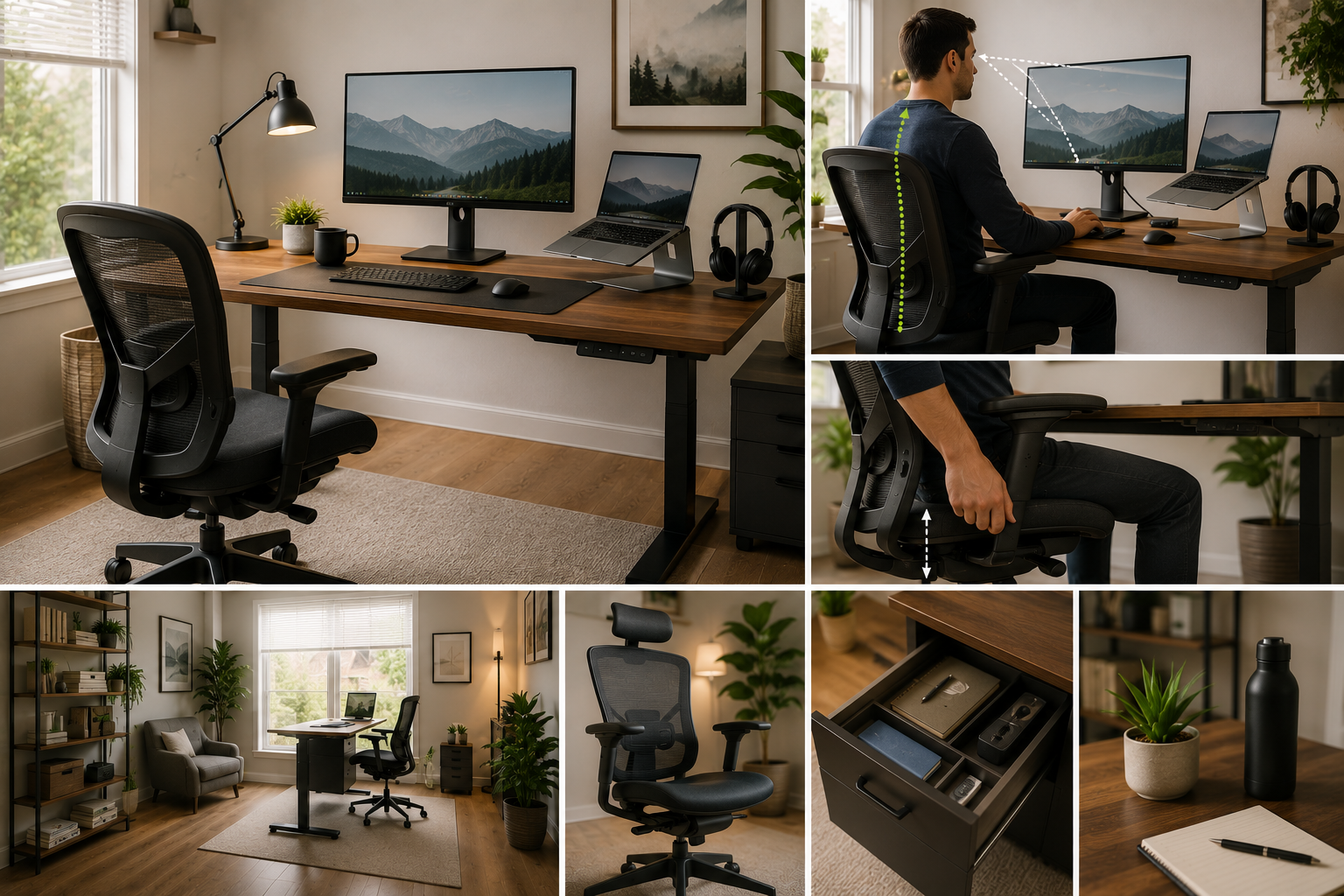
A cluttered desk, a chair that leaves your back aching by noon, and a monitor angled just wrong enough to strain your neck- these small setup mistakes add up to a genuinely unproductive workday. The good news is that a properly arranged home office isn’t complicated to build; it just requires getting a few key measurements and choices right.
This guide covers exactly how to set up a home office for real productivity, from desk and chair ergonomics to lighting, layout, and practical buying advice. We’ll also cover ergonomic desk height, monitor positioning, and home office essentials for American homeowners building or refreshing their workspace.
By the end, you’ll have a clear, actionable plan for a home office that supports focus and comfort throughout your entire workday, not just the first hour.
What Actually Makes a Home Office Productive?
A genuinely productive home office comes down to proper ergonomics, adequate lighting, minimal distractions, and a layout that supports how you actually work. The standard ergonomic desk height in the United States falls between 28 and 30 inches, designed to accommodate roughly the 5th to 95th percentile of adult body sizes, though individual proportions still matter significantly.
Beyond the desk itself, chair height, monitor position, and lighting all work together as a system. Getting one element right while ignoring the others still leaves you vulnerable to discomfort and reduced focus over a full workday.
Getting Your Chair Height Right First
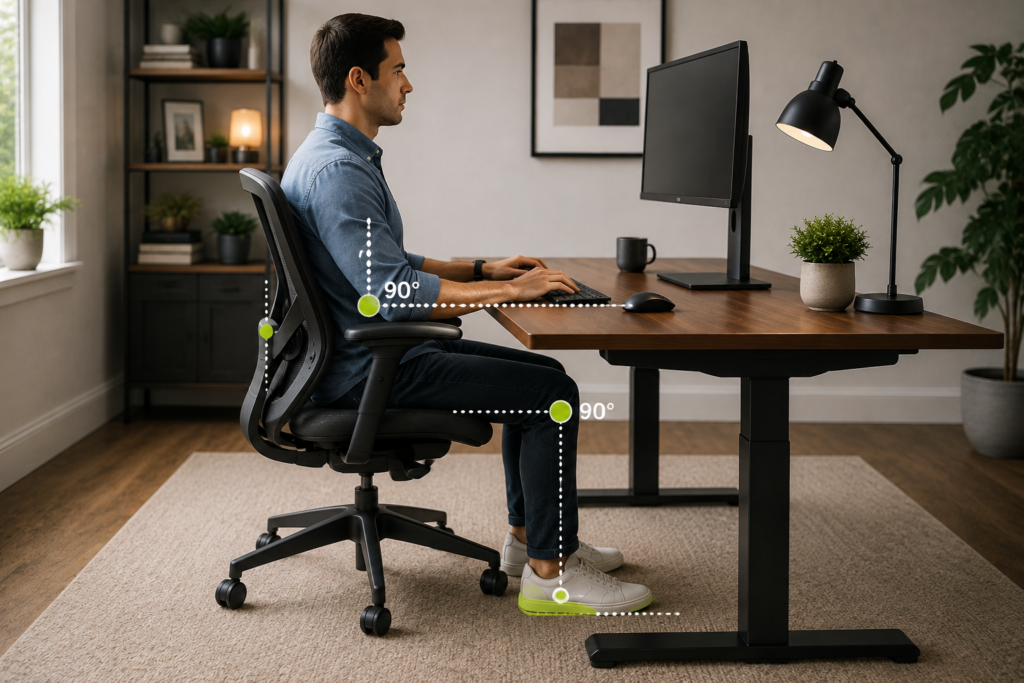
Before adjusting your desk or monitor, chair height should be your starting point, since everything else builds from a properly positioned seated posture.
The correct office chair height positions your feet flat on the floor, your knees slightly below the level of your hips, and your elbows bent at approximately 90 degrees, resting comfortably if your chair has armrests. Getting this foundational position right prevents the awkward compensations, like hunched shoulders or dangling feet, that lead to fatigue over a full day of work.
Chair height adjustment checklist:
- Feet flat on the floor, or on a footrest if the chair can’t go low enough for your height
- Knees at or slightly below hip level
- Elbows bent around 90 degrees when resting on the desk or armrests
- Lower back supported by the chair’s built-in or added lumbar support
If your chair’s lowest setting still leaves your feet dangling, a dedicated footrest is a more reliable long-term solution than propping your feet on books or boxes.
Setting the Right Desk Height
Once your chair is properly adjusted, desk height should complement that seated position rather than forcing you to compensate.
The standard office desk height in the United States is between 28 and 30 inches tall, though this is only a starting baseline rather than a one-size-fits-all number. A helpful practical guideline: measure your height in the shoes you’ll actually wear at your desk, divide that number in half, then subtract roughly 8.5 inches to estimate your minimum comfortable desk height, and subtract roughly 6 inches for your maximum.
For example, someone who is 5 feet 5 inches tall would generally find a desk height between about 24 and 26.5 inches most comfortable, though this should still be treated as a flexible starting point rather than an exact prescription.
Why Desk Height Matters More Than You’d Think
If your desk sits too high relative to your seated position, your shoulders and wrists compensate by lifting, leading to tension over time. If it sits too low, you’re forced to hunch forward, straining your neck and upper back throughout the day.
Positioning Your Monitor Correctly
Monitor placement is one of the most commonly overlooked elements of a home office setup, yet it has an outsized effect on neck and eye strain.
Your eye level should align with the top third of the screen, allowing you to look at the center of the display with a slight downward gaze of roughly 15 to 20 degrees. The monitor itself should also be tilted back slightly, generally in the 10 to 20 degree range, rather than sitting perfectly vertical.
If You Work From a Laptop
Laptops aren’t designed for extended, permanent desk use, since their built-in screens sit too low for proper posture and generally can’t be adjusted to a healthier viewing angle. A laptop stand paired with an external keyboard and mouse solves this problem, letting you raise the screen to proper eye height without sacrificing keyboard comfort.
If You Use Multiple Monitors
When working across two monitors, position them at equal distance from your seated position, ideally forming a shallow arc rather than a flat line, so you’re not repeatedly twisting your neck toward one side throughout the day.
Comparing Desk and Chair Setup Options
| Setup Element | Fixed Option | Adjustable Option |
| Desk | Fixed-height desk | Sit-stand adjustable desk |
| Chair | Basic office chair | Ergonomic chair with lumbar support |
| Monitor | Built-in laptop screen | External monitor with adjustable arm |
| Keyboard | Attached to desk surface | Adjustable keyboard tray |
Adjustable options generally cost more upfront but offer meaningfully better long-term comfort, particularly for anyone spending several hours a day at their desk.
Should You Consider a Standing Desk?
Standing desks have become increasingly popular in home office setups, and understanding their genuine benefits helps you decide if the investment makes sense for you.
A widely cited approach from Cornell University’s Ergonomics Web, often called the “20-8-2” rule, suggests alternating your position roughly every 30 minutes: sitting for 20 minutes, standing for 8, and moving or stretching for 2. This kind of regular position change, rather than either sitting or standing for an entire workday, is generally considered more beneficial than committing fully to one posture.
Benefits of a sit-stand desk:
- Allows position changes throughout the day, reducing prolonged static posture
- Can improve alertness and energy during long work sessions
- Accommodates both focused seated work and quick standing tasks
Considerations before buying:
- Adjustable desks cost more than fixed-height options
- Standing desk mats can improve comfort during standing periods
- A full-day standing habit isn’t necessarily better than a well-managed sitting setup; alternating matters more than choosing one extreme
Essential Home Office Accessories Worth Considering
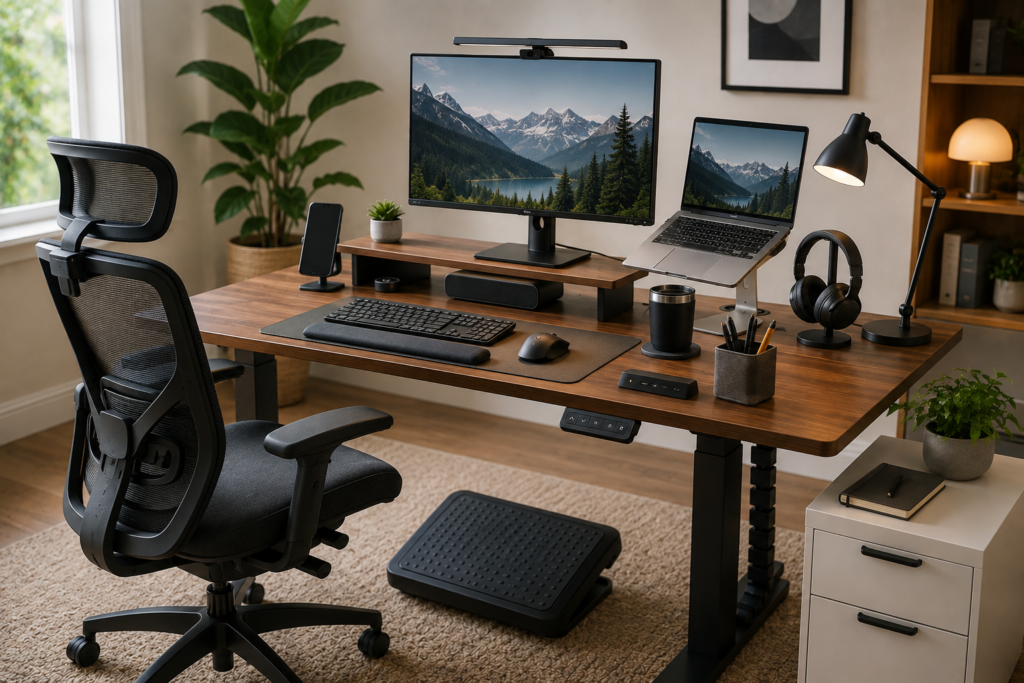
Beyond the core desk, chair, and monitor, a few accessories meaningfully improve comfort and reduce strain during long work sessions.
Keyboard Trays
An adjustable keyboard tray keeps your wrists in a neutral position and reduces strain during typing, particularly useful if your desk height doesn’t perfectly match your ideal typing position.
Monitor Arms
A monitor arm lets you fine-tune screen height and distance far more precisely than a fixed stand, helping you dial in that ideal eye-level alignment discussed earlier.
Lumbar Cushions
For chairs lacking adequate built-in lower back support, a lumbar cushion helps maintain your spine’s natural curve and can meaningfully reduce lower back fatigue during long sitting periods.
Desk Mats
A quality desk mat provides a supportive buffer for your forearms, since resting directly against a hard desk edge creates concentrated pressure that can compress nerves in the wrist and forearm over time.
Lighting Your Home Office for Focus and Eye Comfort
Lighting affects both your energy levels and how much eye strain you experience over a workday, making it worth deliberate planning rather than an afterthought.
- Natural light: Position your desk near a window when possible, though avoid placing your monitor directly facing a window, since this creates glare that’s hard to see past.
- Task lighting: A dedicated desk lamp supplements overhead or natural light, particularly important during darker months or evening work sessions.
- Avoiding screen glare: Position your monitor perpendicular to windows rather than directly facing or backing onto them, minimizing reflected glare on the screen.
- Warm vs cool lighting: Cooler, brighter light generally supports focus and alertness during work hours, while warmer light better suits relaxation spaces, making this distinction worth considering if your home office doubles as another type of room.
Minimizing Distractions in Your Home Office Layout
Physical setup matters, but layout and environment also play a significant role in maintaining focus throughout the workday.
- Choose a dedicated space when possible: Even a small, defined area signals to your brain that it’s time to focus, compared with working from a shared or constantly repurposed space.
- Keep your desk surface minimal: A cluttered desk creates visual distraction and can subtly increase stress, so keeping only actively needed items within reach helps maintain focus.
- Manage cable clutter: Cable organizers or a simple cable tray keep cords out of sight and out of the way, reducing both visual clutter and the risk of accidentally disconnecting something mid-task.
- Consider sound management: If noise is a distraction, noise-canceling headphones or a simple white noise machine can help maintain focus in busier households.
Building a Home Office on Different Budgets
Not every home office needs premium furniture to be genuinely functional, and understanding what matters most helps you prioritize spending effectively.
- Budget-conscious setup: Focus your spending on a properly adjustable chair first, since this has the most direct impact on daily comfort, then add a laptop stand and external keyboard to fix monitor height affordably.
- Mid-range setup: Add an external monitor at proper eye height, a basic keyboard tray, and a lumbar cushion if your chair’s built-in support isn’t sufficient.
- Premium setup: A sit-stand adjustable desk, a dedicated ergonomic chair, and a monitor arm together create the most flexible, comfortable long-term setup, particularly valuable for anyone working from home most days of the week.
Common Home Office Setup Mistakes to Avoid
- Using a laptop as your permanent monitor: This consistently forces poor neck posture, since laptop screens sit too low and can’t be properly adjusted.
- Ignoring chair height in favor of desk height: Chair position should be your starting point; adjusting desk height around a properly positioned chair produces better results than the reverse approach.
- Sitting in the same position all day: Alternating between sitting, standing, and brief movement breaks supports both comfort and alertness better than committing to one static posture for hours.
- Placing your monitor too close or too far: Screen distance affects eye strain just as much as height, so adjust until you can comfortably read text without leaning forward or squinting.
- Neglecting lighting until eye strain sets in: Proactively setting up good lighting prevents the fatigue that builds gradually over a workday of poor visibility or glare.
Conclusion
Building a genuinely productive home office comes down to getting your chair, desk, and monitor working together as a coordinated system, rather than adjusting each piece in isolation. Starting with proper chair height, then building your desk and monitor position around that foundation, addresses the root causes of the fatigue and discomfort that quietly undermine focus throughout the day. Combined with thoughtful lighting and a layout that minimizes distractions, these adjustments create a workspace that genuinely supports productive, comfortable work, not just for the first hour, but for the entire day.
Frequently Asked Questions
1- What is the standard desk height for a home office?
The standard office desk height in the United States is between 28 and 30 inches, though your ideal height depends on your own body proportions and chair setup.
2- How do I know if my monitor is positioned correctly?
Your eye level should align with the top third of the screen, with the display tilted back slightly and positioned so you’re not straining to see clearly or leaning forward.
3- Is a standing desk actually better for productivity?
Alternating between sitting and standing throughout the day, rather than choosing one position exclusively, is generally considered more beneficial than either extreme alone.
4- Do I need an ergonomic chair, or will any office chair work?
While any adjustable chair is better than none, a dedicated ergonomic chair with proper lumbar support offers meaningfully better long-term comfort for those working from home regularly.
5- How can I fix bad posture from working on a laptop?
Using a laptop stand paired with an external keyboard and mouse raises the screen to proper eye height while keeping your typing position comfortable.
6- What’s the most important home office investment for someone on a budget?
A properly adjustable chair generally offers the biggest comfort improvement for the investment, since seated posture forms the foundation for your entire workspace setup.