Setting up a home office can feel overwhelming fast every list online seems to include dozens of “must-have” products, and it’s hard to tell what actually matters versus what’s just nice to have. If you’re building (or fixing) your work-from-home setup, you don’t need everything. You need the right things.
A genuinely functional home office needs five core categories covered a supportive desk and chair, reliable technology (computer, monitor, internet), good lighting, basic organization and storage, and communication tools like a headset or webcam if your role involves calls. Everything else is a helpful upgrade, not a requirement.
This guide breaks down exactly what belongs in each category, what’s truly essential versus optional, and how to prioritize your setup whether you’re furnishing a full room or working from a small corner.
Why the Right Setup Matters More Than People Expect
It’s easy to assume you can work from anywhere with a laptop and Wi-Fi and technically, you can. But the setup you build directly affects your comfort, focus, and even your physical health over time. A poorly designed home office can contribute to back and neck pain, eye strain, and daily frustration that adds up over months of remote work.
The goal isn’t to buy everything; it’s to cover the essentials well, so your workspace supports you instead of working against you.
Category 1: Furniture Foundations (Desk and Chair)
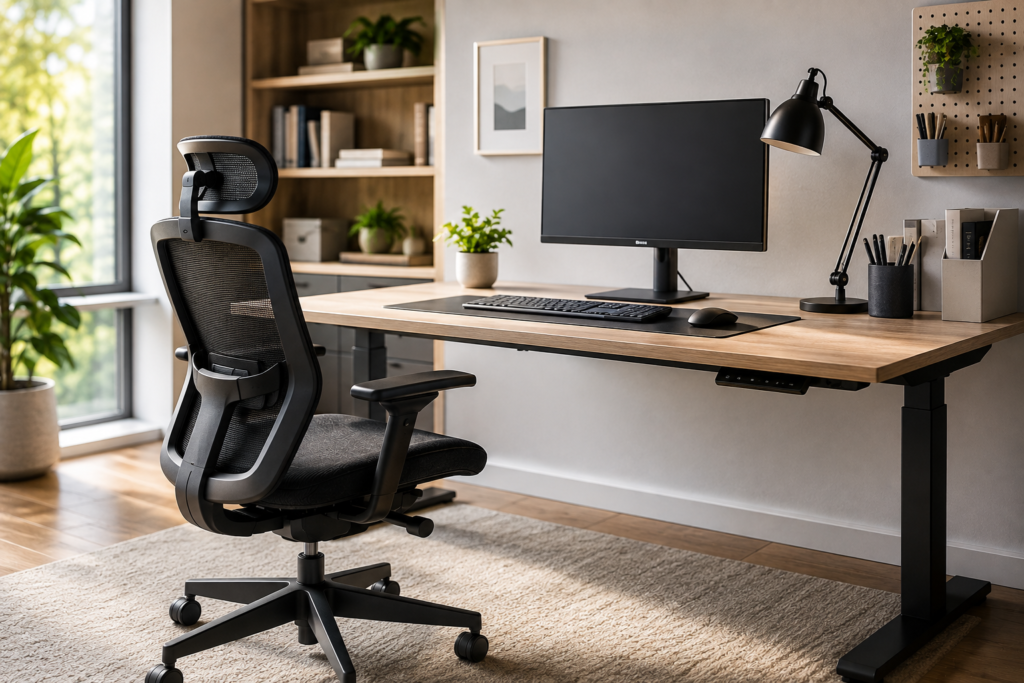
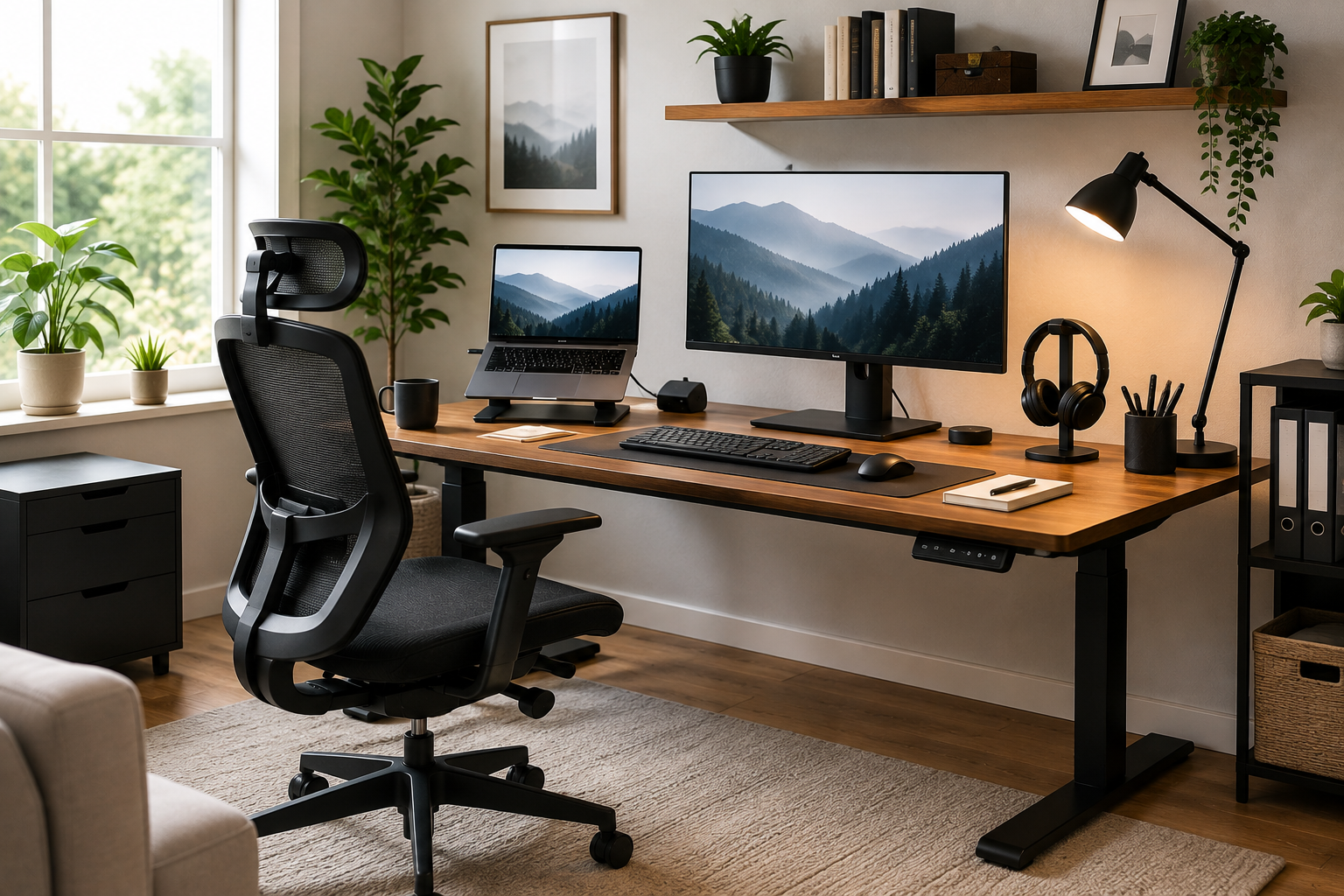
Your desk and chair form the physical foundation of your home office, and they have the biggest direct impact on your comfort and posture.
The Desk
At minimum, your desk should give you enough surface area for your monitor, keyboard, and any daily materials, without feeling cramped.
- Standard size: At least 48 inches wide by 24 inches deep works for most single-monitor setups.
- Height: Around 29 to 30 inches is standard, though a height-adjustable desk offers more flexibility if you want the option to stand periodically.
- Shape: A simple rectangular desk works for most people; L-shaped desks offer more room if you use dual monitors or need paperwork space.
The Chair
A supportive office chair is one of the most important remote work essentials, since you’ll likely spend several hours a day in it.
Look for:
- Adjustable seat height and depth
- Lumbar support (ideally adjustable)
- Adjustable armrests
- A stable base with smooth-rolling casters
Skipping a proper chair is one of the most common regrets remote workers report after months of using a dining chair or couch as a substitute.
Category 2: Core Technology
Beyond furniture, a handful of technology essentials make up the working core of any remote setup.
A Reliable Computer
Whether it’s a laptop or desktop, your computer needs enough processing power, RAM, and battery life (for laptops) to comfortably handle your specific workload video calls, multiple browser tabs, or software-heavy tasks, depending on your role.
A Monitor (or Two)
An additional monitor is quickly becoming a standard part of most remote setups. A second screen makes multitasking, comparing documents, and general workflow noticeably smoother compared to working from a single laptop screen.
Basic setup options:
| Setup | Best For |
| Laptop only | Simple, mobile-focused work |
| Laptop + external monitor | Most remote roles needing more screen space |
| Dual external monitors | Heavy multitasking, design, data-heavy work |
Keyboard and Mouse
A separate keyboard and mouse even a basic set improves ergonomics significantly compared to typing directly on a laptop, which often forces your wrists and neck into an unnatural position.
Reliable Internet Connection
This one is non-negotiable for remote work. Your internet needs to reliably support video calls, file transfers, and everyday browsing without frequent drops a personal connection intended for casual browsing may not be sufficient for consistent professional use.
Category 3: Lighting
Lighting is one of the most overlooked home office essentials, but it directly affects eye strain, focus, and how you appear on video calls.
The Basics
- Ambient lighting: General room brightness so your monitor isn’t the only light source in the room.
- Task lighting: A dedicated, adjustable desk lamp aimed at your work surface.
- Desk positioning: Place your desk perpendicular to windows rather than facing them or with your back to them, to avoid glare and screen washout.
For Video Calls Specifically
If your role involves regular video meetings, consider a small ring light or desk-mounted light bar, especially if natural light isn’t consistently available in your workspace. Facing a light source (rather than having one behind you) makes a noticeable difference in how you appear on camera.
Category 4: Organization and Storage
Even a small amount of clutter can quietly reduce focus over time. Basic organization tools keep your workspace functional without requiring a major overhaul.
Core storage essentials:
- Desktop organizer for pens, notepads, and small daily items
- Drawer dividers if your desk has drawers, to prevent them from becoming a catch-all
- A designated spot for cables and chargers, using clips, sleeves, or a small cable box
- A filing solution — even a simple folder system or small file box if your role involves physical paperwork
You don’t need elaborate storage furniture to start; the goal is simply giving every category of item (supplies, cables, documents) a consistent, designated spot.
Category 5: Communication Tools
If your work involves calls, meetings, or client-facing video, communication equipment becomes part of your essential setup not just a nice extra.
Headset
A dedicated headset improves both what you hear and how clearly you’re heard, especially compared to a laptop’s built-in microphone in a room with background noise.
- Basic options: Wired or Bluetooth headsets work fine for occasional calls.
- Higher-quality options: Worth considering if you’re on calls for a significant portion of your workday or in client-facing roles where audio clarity matters.
Webcam
Laptop webcams are often lower quality than a dedicated external webcam. If video calls are a regular part of your role, an external webcam can noticeably improve how you appear on screen.
Video Conferencing Software
Reliable video conferencing tools (widely used platforms for meetings and calls) are essential infrastructure for most remote roles usually provided or specified by your employer, but worth confirming works smoothly with your setup before you need it for an important call.
What’s Genuinely Optional (But Worth Considering)
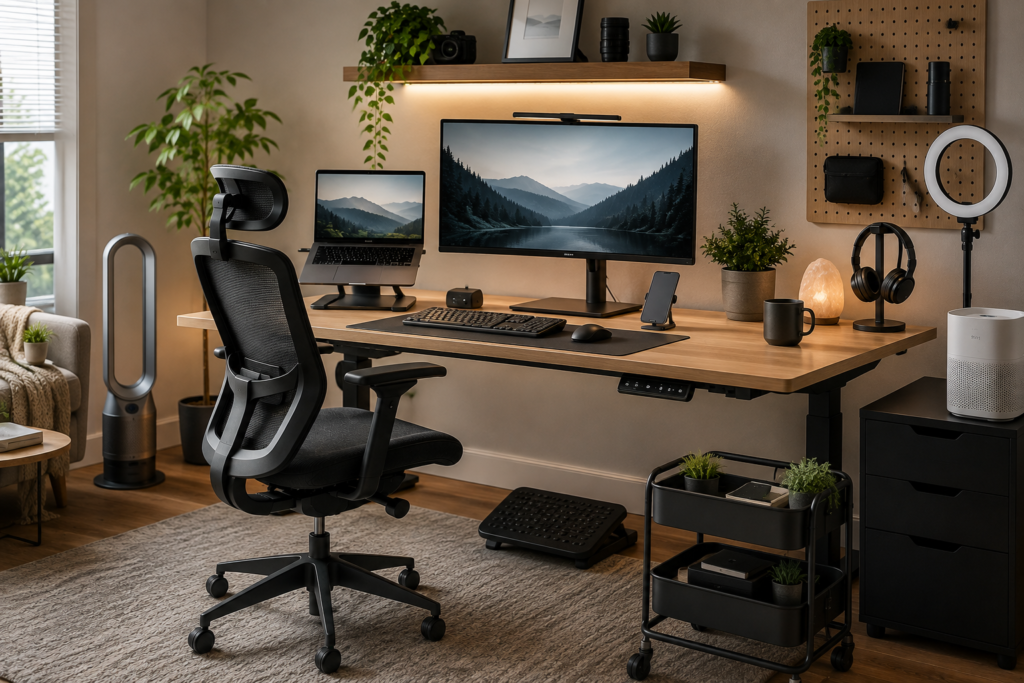
Not everything marketed as a “remote work must-have” is actually essential for everyone. These are worthwhile upgrades once your core setup is solid not starting points.
| Item | When It’s Worth Adding |
| Standing desk converter | If you want flexibility to stand without buying a full adjustable desk |
| Printer/scanner | If your role regularly involves physical documents |
| Filing cabinet | If you manage a significant volume of paperwork |
| Surge protector/power strip | Useful for protecting multiple devices, especially in storm-prone areas |
| Password manager | Helpful for managing multiple work logins securely |
| Laptop stand | Improves ergonomics if you primarily work from a laptop screen |
| Under-desk footrest | Useful if your feet don’t rest flat on the floor even with proper chair height |
None of these are strictly required to work effectively they’re comfort or efficiency upgrades once your fundamentals are covered.
Building Your Setup on a Budget: What to Prioritize First
If you can’t buy everything at once, prioritize based on what most directly affects your daily comfort and ability to work effectively.
Priority order for most remote workers:
- A supportive chair — the piece of equipment you interact with the longest each day
- Reliable internet — without it, nothing else functions properly
- A proper desk sized for your work, even if basic
- A second monitor, if your work involves multitasking or extended screen time
- Good task lighting
- Communication tools (headset, webcam), if calls are a regular part of your role
- Organization basics (organizer, cable management)
Everything beyond this list can be added gradually as your setup and your budget allows.
Setting Up a Dedicated Workspace (Even in a Small Home)
If you don’t have a spare room for a home office, you can still create a functional, focused workspace.
- Choose a consistent spot, even if it’s a corner of another room, rather than moving around the house daily.
- Use a room divider or bookshelf to create a visual boundary if you’re working in a shared space.
- Keep your setup as permanent as possible packing everything away daily makes it harder to maintain an organized system.
- Position your desk away from high-traffic areas to reduce distractions and interruptions during calls.
Practical Buying Advice
- Don’t buy furniture and technology at the same tier. A premium chair paired with a budget desk (or vice versa) often makes more sense than spreading your budget evenly across everything.
- Test ergonomics before spending on extras. A properly adjusted chair and desk height solves more comfort issues than most add-on accessories.
- Match your monitor and computer needs to your actual workload, not a generic recommendation a content-heavy role needs different tools than a highly visual one.
- Invest in communication tools proportional to how often you’re on camera or calls. A daily client-facing role justifies a better headset and webcam than occasional internal meetings.
- Build gradually. Cover the essentials first, then add optional upgrades as you identify specific pain points in your day-to-day setup.
Focus on Function Before Extras
A great home office isn’t defined by how much equipment it has it’s defined by how well the essentials actually support your work. Start with a supportive chair and properly sized desk, make sure your technology and internet can reliably handle your workload, add lighting that reduces eye strain, keep basic organization in place, and round it out with communication tools if calls are part of your role.
Everything else is a bonus. Get the fundamentals right first, and your home office will genuinely support focused, comfortable work not just look complete on a checklist.
FAQ
1- What’s the single most important home office essential?
There isn’t one universal answer, but a supportive chair and reliable internet connection are consistently cited as foundational, since they affect both your physical comfort and your ability to actually work without interruption.
2- Do I really need a second monitor to work from home?
Not everyone does, but an additional monitor significantly improves workflow for anyone who multitasks, compares documents, or uses multiple applications simultaneously throughout the day.
3- Is a standing desk considered essential for remote work?
No — it’s a valuable option for reducing prolonged sitting, but a well-designed fixed-height desk paired with a supportive chair is a perfectly functional setup for many remote workers.
4- What do I need if my job involves a lot of video calls?
Beyond your basic setup, prioritize a dedicated headset, a decent webcam (if your laptop’s built-in camera is low quality), and good lighting positioned in front of you rather than behind.
5- Can I work effectively from home with just a laptop?
Yes, for lighter workloads or occasional remote work. However, for sustained daily remote work, most people find that adding an external monitor, keyboard, mouse, and proper seating meaningfully improves comfort and productivity over time.
6- How much should I expect to spend setting up a home office?
Costs vary widely depending on what you already own and your role’s specific needs. Prioritizing the core essentials first chair, desk, internet, monitor and adding optional items gradually is a practical way to manage the investment over time.